Monitoring
PILOS provides several tools for monitoring the application, queue workers, and server resources.
Users with the system.monitor permission can access the built-in monitoring tools from the main menu via System Monitoring.
Horizon is always available there. Pulse and Telescope are shown only when they are enabled in the configuration.
Horizon
Laravel Horizon manages PILOS queue workers and provides a monitoring and control UI.
In PILOS, Horizon runs in the dedicated horizon container and scales the number of worker processes based on queue load.
You can run multiple Horizon instances to further increase queue throughput. All Horizon containers must use the same application code (same PILOS version) at all times. As described in the scaling guide, all containers must share the same Redis, database, storage, and environment configuration.
Pulse
Laravel Pulse is a built-in monitoring tool that provides performance and usage insights. It helps track down bottlenecks such as slow jobs, slow endpoints, and slow outgoing requests, and shows the most active users and more.
Pulse captures events and pushes them to a Redis stream, which is ingested into the database by a separate process.
In high-traffic deployments, aggregating large amounts of data can cause performance issues and put additional load on Redis and the database.
To configure sampling and other recorder settings, see config/pulse.php.
To disable Pulse event capturing and web routes set the following in your .env file:
PULSE_ENABLED=false
Telescope
Laravel Telescope provides deep insights into the application lifecycle. It helps with debugging by showing details for each request, job, outgoing request, exception, email, and more.
Telescope is disabled by default. It is strongly recommended not to enable it in production environments.
To enable Telescope set the following in your .env file:
TELESCOPE_ENABLED=true
Metrics
PILOS provides a set of metrics that can be used to monitor the application. These metrics are available via the /metrics endpoint and can be scraped by Prometheus or other monitoring tools.
The monitoring endpoint is unprotected and can be accessed by anyone who knows the URL. It is recommended to protect the endpoint with a reverse proxy using an IP allowlist or basic authentication.
Grafana Dashboard
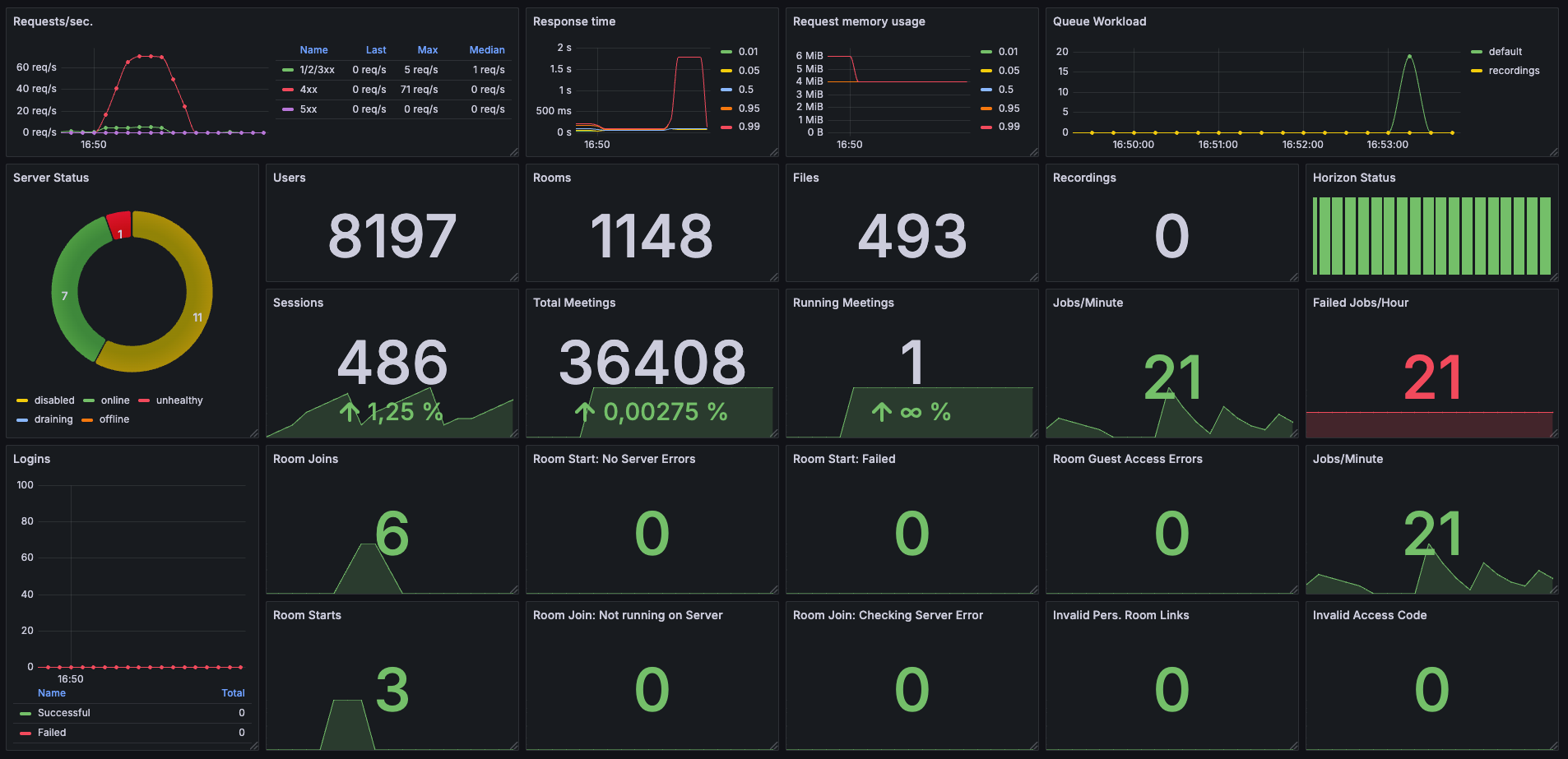
The metrics can be visualized using Grafana.
You can import the PILOS Grafana Dashboard to get a pre-configured dashboard for monitoring PILOS
or create your own dashboard using the metrics provided by the /metrics endpoint.
Configuration
| Option | Default Value | Description |
|---|---|---|
METRICS_ENABLED | false | Enable the metrics collection and endpoint |
METRICS_NAMESPACE | pilos | Prefix for the metrics |
METRICS_COLLECTOR_REQUEST_MEMORY_ENABLED | true | Collect the memory usage |
METRICS_COLLECTOR_REQUEST_MEMORY_EXCLUDE_ROUTES | metrics | Comma separated list of routes that should be excluded from memory usage collection |
METRICS_COLLECTOR_REQUEST_DURATION_ENABLED | true | Collect the request duration |
METRICS_COLLECTOR_REQUEST_DURATION_EXCLUDE_ROUTES | metrics | Comma separated list of routes that should be excluded from request duration collection |
METRICS_COLLECTOR_REQUEST_TOTAL_ENABLED | true | Collect the total number of requests (per response code group: 1xx, 2xx, etc.) |
METRICS_COLLECTOR_REQUEST_TOTAL_EXCLUDE_ROUTES | metrics | Comma separated list of routes that should be excluded from total request collection |
METRICS_COLLECTOR_STORAGE_ENABLED | true | Collect the available space and free space of the storages (per storage: local, recordings, recordings-spool) |
PHP-FPM Monitoring
The PHP-FPM status page is available on container port 81 at /status.
You can forward the port to the host by adding the following line to the docker-compose.yml file for the app service:
ports:
    - "127.0.0.1:9000:81"
If you would like to monitor PHP-FPM using Prometheus and Grafana, you can use the hipages/php-fpm_exporter:latest container.
Add the following service to the docker-compose.yml file:
monitor:
    image: hipages/php-fpm_exporter:latest
    restart: always
    ports:
        - "127.0.0.1:9253:9253"
    command: "--phpfpm.scrape-uri=tcp://app:81/status"
You can configure a reverse proxy to expose the container, add password protection, configure Prometheus and Grafana to scrape the metrics, and create dashboards.